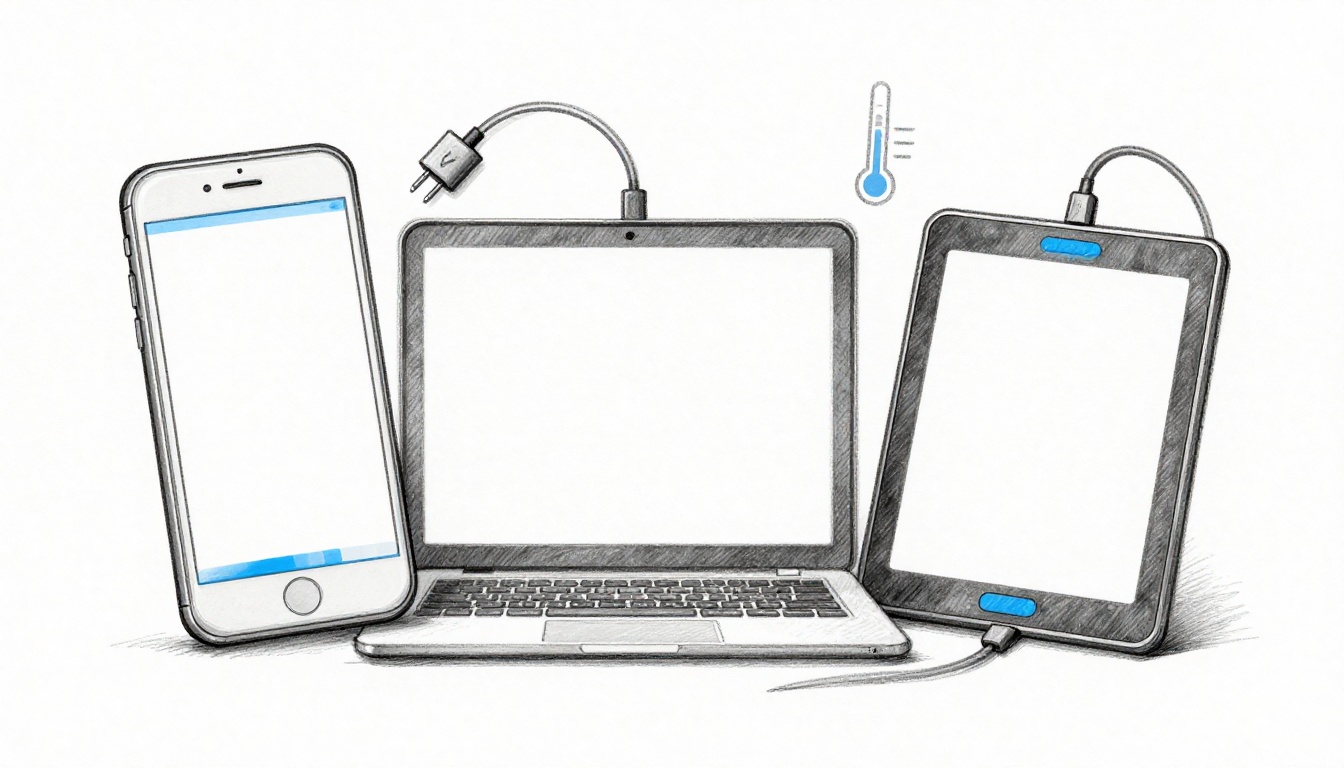
When your phone or laptop dies mid-day, it feels like a breach of trust. Most lithium-ion batteries in consumer devices wear down faster when the charging and heat rules are ignored. On the other hand, smart battery usage habits can extend usable life by a meaningful margin, often for years.
These 2026-updated practices focus on the same controlling factors that experts cite in lab and field guidance: charge level stress, screen power draw, and temperature. The process is operational and repeatable. You will use proper charge limits, tighten everyday drains, tune device settings, and avoid the common mistakes that accelerate aging.
The following sections set out practical duties for daily charging, day-to-day power management, device-specific usage, and the battery killers you should not authorize.
Adopt Charging Habits That Protect Your Battery
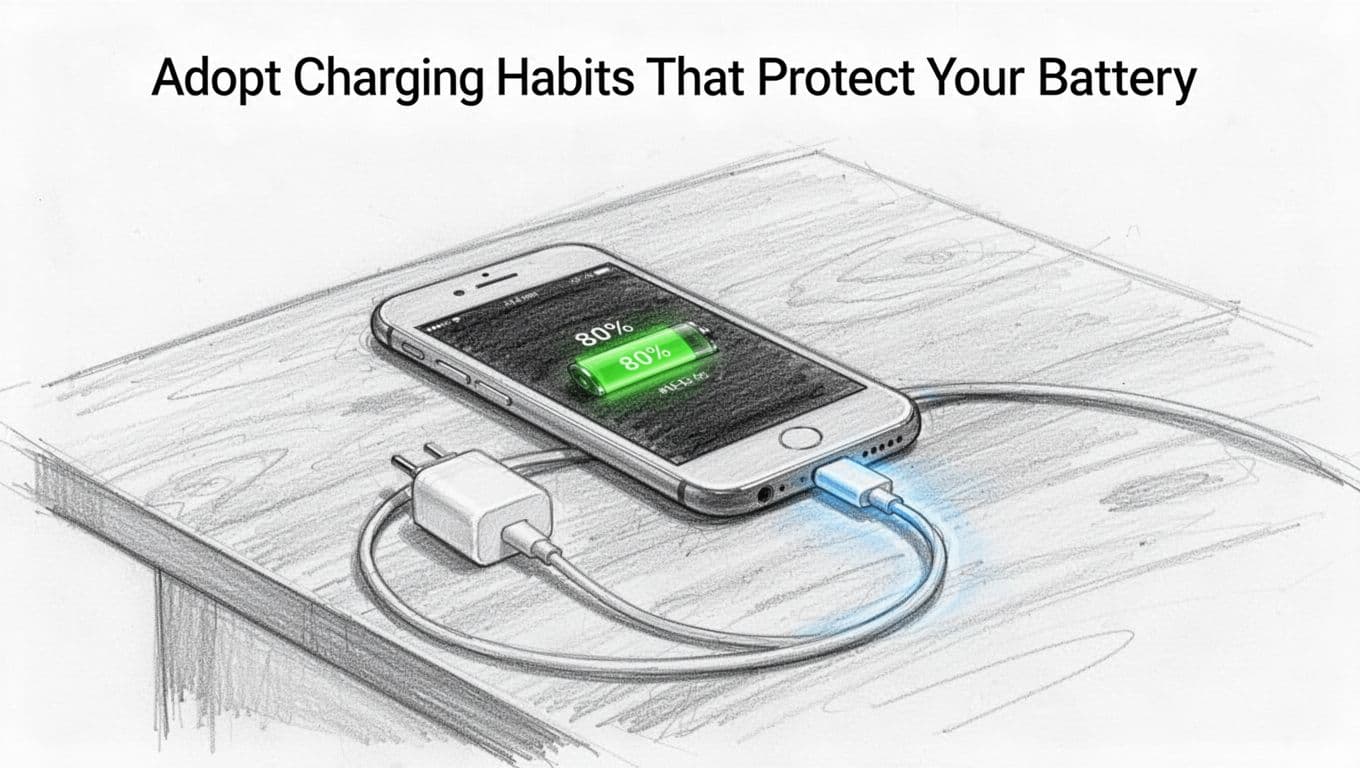
Battery wear is driven by stress, not by random luck. For lithium-ion packs, the stress increases when you repeatedly push cells toward full charge and when you run them hot. Therefore, a controlled operating range is the default requirement for longer cycle life.
A widely used constraint is the 20% to 80% band for daily use. Modern devices do include battery management software, yet the chemistry still benefits from reduced time at high state of charge. For context, see whether the 20-80% battery rule still fits in 2026. The core point remains consistent: holding the pack near the middle reduces strain.
In practical terms, treat the battery like a rubber band that repeatedly gets overstretched. When you keep it near center tension, it snaps less often. When you pull it to max tension daily, the material degrades faster.
Key charging rules you shall follow:
- Use partial charges as the default. Example: charge from 40% to around 70% or 80%, then unplug.
- Avoid overnight full charging when you can. If you must, rely on built-in limits that stop at 80% to 90%.
- Do not “top off” at 100% repeatedly. A charger that holds at full for long periods adds heat and cycle stress.
- Prefer slower charging when feasible. Fast charge may be used for short boosts, not as the routine.
- Control heat while charging. Keep the device below 95°F (35°C) when possible.
Heat acts like an accelerant. If the device runs hot, charging and aging both speed up.
Set Up Automatic Charge Limits
Most phones and laptops now include an “optimized charging” control. When enabled, the device typically learns your routine and holds charge closer to a set target, often around 80%. It then completes the charge later if you need it.
On iOS, you can enable Optimized Battery Charging in Settings under Battery (wording may vary by OS version). On Android, the equivalent feature is usually labeled Adaptive Charging, often inside Battery settings. Where available, you should set the target to 80% to 90%.
For laptops, you may have vendor tools, or a BIOS/UEFI option that caps maximum charge. If you do not see a built-in cap, you can still use operating system power profiles and avoid sustained charging at high state of charge.
Operational requirement: turn on these limits before you change your daily routine. Otherwise, your habits may fight the default charging behavior.
Choose the Right Charger Every Time
Charging accessories affect heat and voltage stability. Therefore, you shall use original or certified chargers and cables. Cheap cables can run hotter, and unstable output can force extra battery management work.
For fast charging capability, the policy is simple: use fast charging for short windows. You should avoid fast charging as a daily baseline when a regular-speed option exists.
Also, you should stop using the device while it charges if it heats up. During heavy tasks, your device generates heat and also processes charge, which increases the combined stress load.
Tame Daily Usage to Stop Hidden Drains
Charging is only one side of the equation. Daily use also creates heat, and it drains charge through high-power activities. The screen is normally the largest power consumer, even when the battery “looks fine.”
Therefore, the screen settings become the first line of duty. Lower brightness when ambient light allows it, and keep the screen timeout short. If your display supports it, enable dark mode for OLED or AMOLED screens, since those panels can reduce power draw for darker pixels.
Background activity also matters. Background apps can refresh data, run location checks, or keep sensors active. As a result, the battery can drain even when the device appears idle.
For context on phone behavior and practical fixes, see iPhone battery life tips and background controls. The methods focus on the same causes: screen draw and background work.
Tighten these areas in a controlled way:
- Brightness and screen timeout: reduce both when possible.
- Refresh rate: if a setting exists, run 60Hz for daily use.
- Wireless radios: disable Bluetooth, Wi-Fi, or GPS when you do not need them.
- Background refresh: limit social and media apps that refresh often.
- Battery saver modes: use them when you need protection, not as a permanent state.
Real-world example: a browser with many open tabs can drive constant syncing and rendering work. Even when you are not “actively browsing,” the device may stay busy.
Master Your Screen and App Settings
You should treat these settings as your authorized defaults. Turn on auto-brightness only if it behaves reasonably in your environment. If auto-brightness swings too much, set brightness manually to a lower, stable level.
Dark mode should remain enabled when it does not impair your reading. In addition, apply a quick screen-off rule. If you set the screen to turn off after 15 to 30 seconds, you reduce idle power waste.
For apps, use the permissions model strictly. Background app refresh, location access, and push notifications should only apply to apps that require them.
Leverage Power-Saving Modes Effectively
Battery saver modes restrict tasks and reduce power consumption. On phones, battery saver typically lowers CPU speed, throttles background work, and changes some visuals. On laptops, power settings often reduce performance, while still supporting basic tasks.
Use airplane mode when you need to reduce radio drain, especially in low-signal areas. In weak signal zones, radios spend more energy searching for service.
For wearables, you should reduce always-on display time if the model supports it. Vibration and sensor use should be limited to what you need during the day. Sensors are useful, but they also operate as ongoing workloads.
Customize Tips for Your Favorite Devices
Different devices share the same battery chemistry pressure points: heat, time at high charge, and power draw from screens and radios. Still, each category has its own control points.
| Device type | Primary setting to adjust | Usage rule to follow |
|---|---|---|
| Smartphone | Dark mode, brightness, refresh rate | Keep daily charge in the 20–80 band |
| Tablet | Screen brightness and timeout | Close unused apps, reduce background activity |
| Laptop | Power plan, display settings | Avoid sustained high charging when practical |
| Smartwatch | Always-on display and notification rate | Charge in short windows, avoid heat |
| Earbuds | Case storage and firmware updates | Avoid deep drains, keep firmware current |
The universal rule remains: cool temperatures and weekly usage checks add years to service life. In practice, this means you should keep devices out of sun and away from hot cars.
Phone and Tablet Essentials
For touch devices, screen management governs most gains. Keep brightness at a reasonable level, reduce screen timeout, and enable dark mode when it applies. Also, restrict location permissions for apps that do not require constant tracking.
Next, control background work. Close apps you do not need. If your OS supports background app limits, apply them to social and video apps first, because these apps commonly refresh and fetch data.
Finally, avoid charging while the device is under heavy load. If the phone feels warm, stop charging and let it cool before you resume.
Laptop and Wearable Hacks
For laptops, keep vents clear and dust-minimized. Blocked airflow leads to higher internal temperatures, which raises battery aging risk. You should also close unused tabs and disable extensions you do not need. A high tab count can increase CPU and memory work.
Use a power-saving profile during normal tasks. When you must run heavy workloads, accept higher battery drain, but do not run the device hot for long periods.
For wearables and earbuds, avoid long full holds if your model allows partial charging. Reduce always-on displays and shorten screen interactions. For earbuds, store them in the case after use and avoid frequent deep drains.
Steer Clear of These Battery Killers
Battery killers rarely look dangerous at first. They often present as “normal habits.” However, they increase the time your battery spends in high-stress states.
The following mistakes should not be authorized:
- Full discharges to 0% as a habit. Deep drains stress the cells and reduce usable capacity faster.
- Constant 100% plugged in for long periods. Without charge limits, time at maximum voltage adds wear.
- Using the device while charging in heat. Combined heat from active use plus charging accelerates aging.
- Extreme temperatures. Hot cars, direct sun, and cold storage all raise risk depending on the device.
- Ignoring software updates. Updates often include power efficiency fixes.
- Too many background tasks. Background work increases both drain and heat.
Heat remains the dominant variable you can control. Even when you cannot change your charging pace, you can change your environment.
If you want a parallel view on charging habits and long-term battery care, EV charging best practices for longer battery life explains the same voltage stress logic, even though it targets vehicles.
When you correct these habits now, you reduce the rate of degradation later. This is the difference between “battery still works” and “battery works for years.”
Conclusion
Extending battery life is not random. It follows a small set of controls: charge within a safe range, reduce screen and background drains, and avoid heat during charging and use.
Start by checking your charge limit settings, then apply the screen and power controls that match your device. Track changes for a week so you can confirm improved runtime.
What is your best battery-saving habit right now, and what setting will you adjust first today?